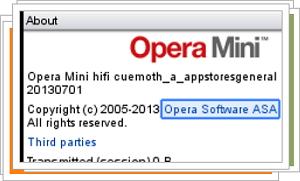
Slow connection on your PC will make you very frustrated if you need to check any important thing on the internet. The solution is by using Opera Mini or UC Browser on your mobile device, but the problem on mobile device is the text input and screen wide is very limited. So why not using UC Browser on the PC?
After the previous post about How to use Opera Mini for PC, Now we are using the same way to use UC Browser on your PC. So the different is at the java MIDlet file that we will use. On the previous post we are using Opera Mini MIDlet to run Opera Mini. Please, read the previous post before continue this tutorial, because I will not explain much in here.
All the requirements are the same with How to use Opera Mini on PC, except for the java MIDlet. You must first downlod UC Browser Lite MIDlet from this UC Browser download page click JAVA and download Lite version for JAVA. Remember that this tutorial will only work for UC Browser Lite version.
The next steps is the same steps with Opera Mini for PC. You need to load the UC Browser MIDlet to MicroEmulator and launch UC Browser on it. That is all you need to know on How to use UC Browser on PC. Don't forget to comment if you have any question. Thank you.
Opera Mini Web Browser is well known because of the performance for the slow connection environment. That's why Opera Mini is very famous among mobile device users. If you also have a slow connection on your PC, maybe you are wondering if Opera Mini Web Browser is also available for PC users. Officially there is no Opera Mini for PC, but there is a way to make Opera Mini available on your PC.
In this post, we will learn How to use Opera Mini for PC. Thanks to My Opera Community that have sharing the idea to use Java emulator and Opera Mini MIDlet to be able to use Opera Mini for PC.
As I have mentioned above, the idea to be able to use Opera Mini for PC is by using Java Emulator. In this post, we will use MicroEmulator, a lightweight Java Emulator. However, microemulator need to have Java Runtime Environment (JRE) installed on your PC to work. So, this is the list of file you need to have before you can use Opera Mini for PC:
- Java Runtime Environment (JRE), Download and install it, if you it is not already installed.
- MicroEmulator, Download and extract the file to you PC (to a place you remember)
- Opera Mini MIDlet, Download it to a place you remember.
Now you have all you need to make Opera Mini available for your PC. Navigate to MicroEmulator folder that you have already extract, and execute "microemulator.jar". You will see MicroEmulator default interface that is like a phone. You can also change the default interface to just a resizable window. Take a look to the picture below:
The image above explained how to configure MicroEmulator if you want to have a full window interface. Go to "Options" then "Select device...", from the pop up window, choose "Resizable device" and then press OK or you can also click on "Set as default" to make it your default interface.
Next to load Opera Mini MIDlet to MicroEmulator. Take a look to this picture:
On the MicroEmulator window, click on "File" and then choose "Open MIDlet File...". A new window will pop up, choose the Opera Mini MIDlet that you have download from here and press "Open". Wait for a while until you can see "Opera Mini 4" and then choose start.
That is all, now you can enjoy Opera Mini on your PC. For UC Browser lover, maybe next post I will post about How to use UC Browser on PC. Don't forget to comment if you have any question. Thank you.